KeepMeUp
Keep the Mac awake, then run it from your phone.
A small menu bar app. One click stops display sleep, the screensaver and idle sleep, and timers turn the display off, lock, sleep or shut down the Mac later. Connect your own Telegram bot and you can do the same from anywhere, plus screenshots, apps, media, files and alerts.
Free, MIT licence, no accounts or servers. The app is not notarized, so the first launch needs right-click, Open. Figures from the GitHub API, 3 October 2026.
What it does
A coffee cup in the menu bar. It is filled while the Mac is being kept awake.
One-click keep-awake
Blocks display sleep, the screensaver and idle system sleep, whatever your Energy and Lock Screen settings say. Turn it off and macOS goes back to normal.
Timers
After 15 minutes, an hour or any time you type (45m, 1h30m, 2:15): stop keeping awake, turn the display off, start the screensaver, lock, sleep, restart or shut down.
Alerts and schedules
A Telegram message when the battery runs low, the charger is plugged or unplugged, or the Mac comes online. Actions that repeat daily, like sleep at 1 AM on weekdays.
Built-in updates
Checks GitHub for new releases, verifies the download's signature, installs it in place and relaunches. Launch at login, and keep-awake can resume after a restart.
Screenshots
The menu bar window and two Settings tabs, on macOS 26.
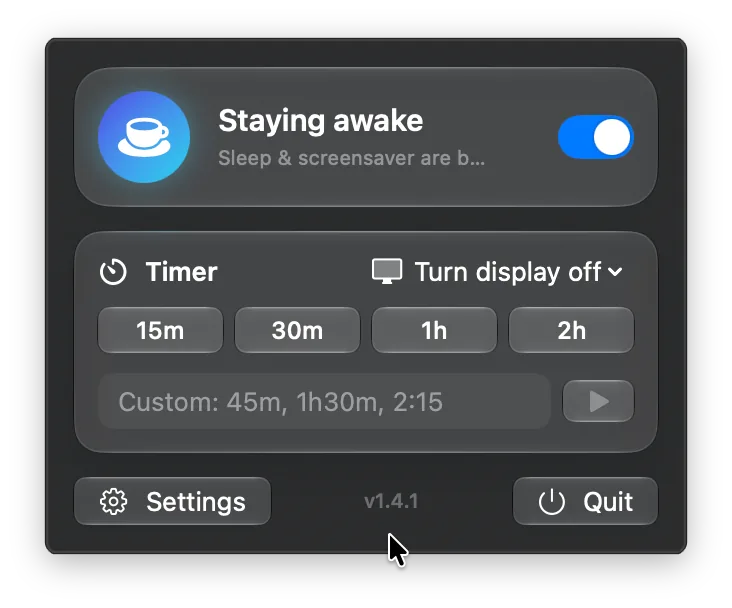
The menu bar window 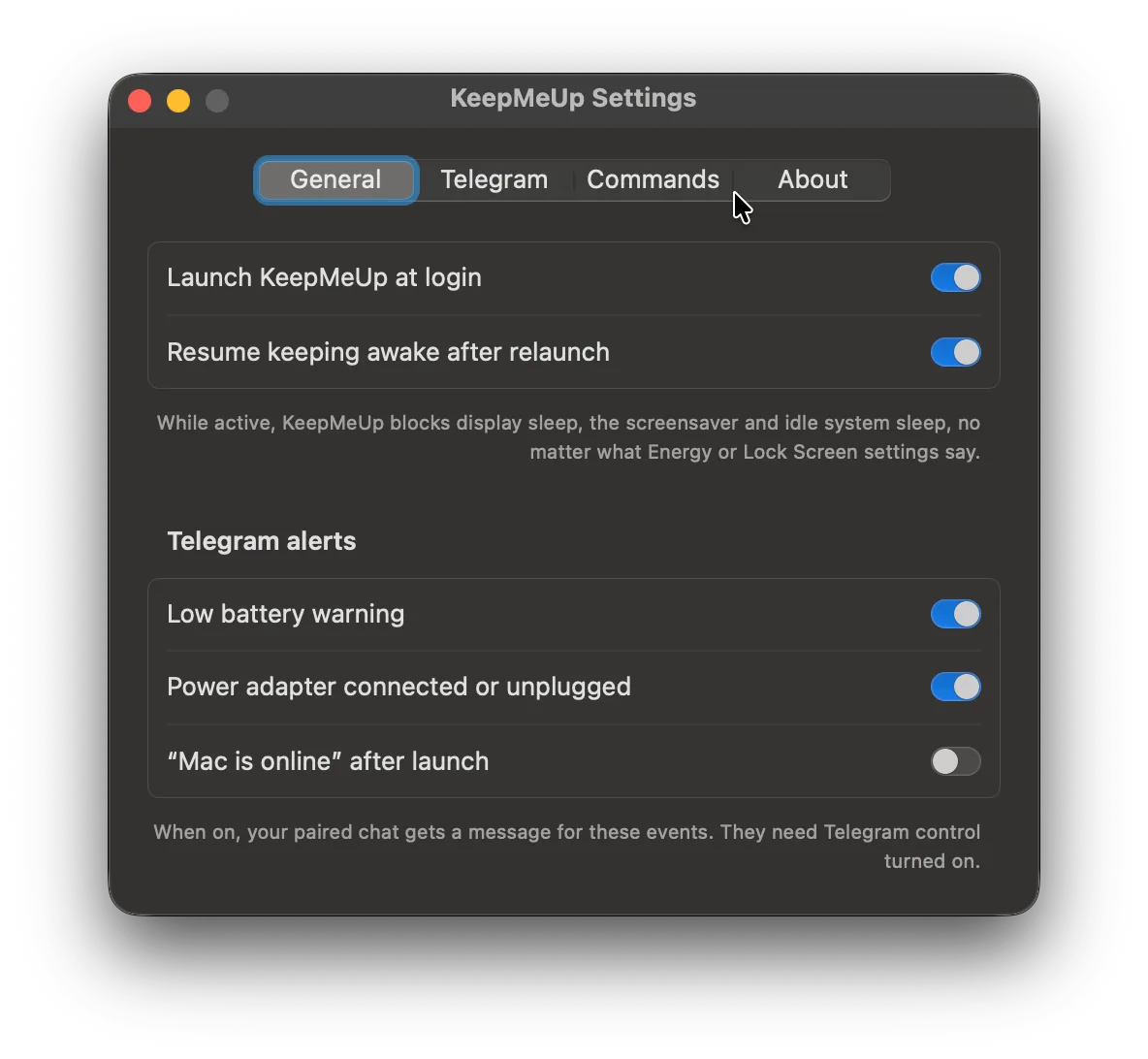
Settings, General 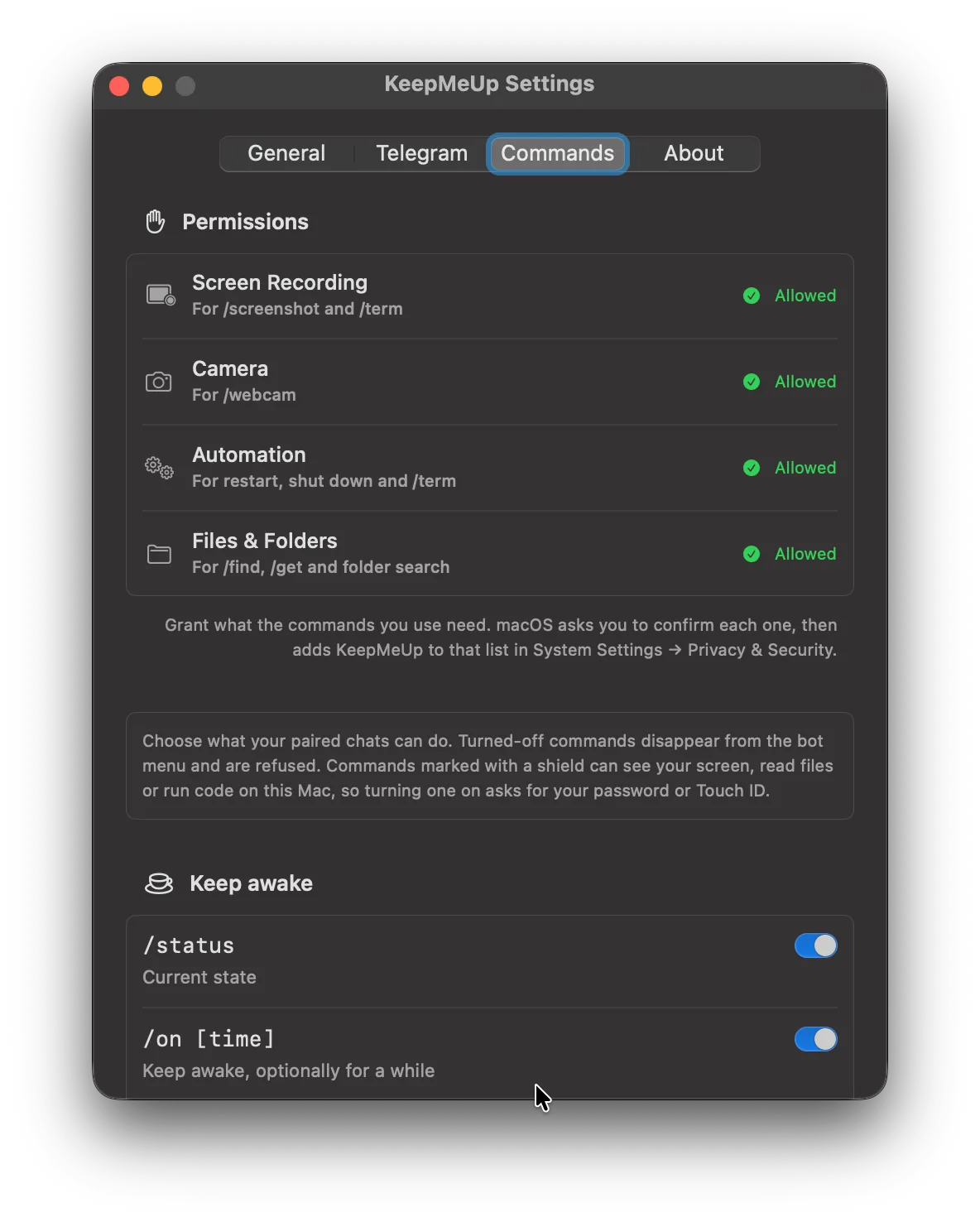
Settings, Commands
Try the commands
A copy of the app's Commands tab next to a chat with the bot. Switch a command off and it leaves the bot's menu and the /help reply, as it does in the app.
32 of 45 on. Commands marked can see the screen, read files or run code: they start off, and turning one on asks for your password or Touch ID.
Keep awake
/statusCurrent state
/on [time]Keep awake, optionally for a while
/off [time]Stop keeping awake, now or later
/timer <time> <action>Schedule an action
/cancelCancel the running timer
/caffeinate <app>Keep awake only while an app runs
Power and screen
/displayoffTurn the display off
/screensaverStart the screensaver
/lockLock the screen
/sleepSleep now
/restartRestart (asks first)
/shutdownShut down (asks first)
/brightness [0-100]Show or set display brightness
Desktop
/desktopHide all apps and show the desktop
/showBring hidden apps back
Screen and info
/screenshotCapture the screen
/webcamTake a photo with the camera
/infoBattery and system info
Apps
/appsList running apps with quick quit links
/open [name or number]List installed apps or launch one
/quit [name or number]Quit an app
Sound and media
/volume [0-100]Show or set the output volume
/muteMute or unmute the output
/playPlay or pause the current media
/nextSkip to the next track
/previousGo to the previous track
System
/say <text>Speak text out loud on the Mac
/notify <text>Show a notification on the Mac
/clip [text]Read the clipboard, or set it
Network
/wifiWi-Fi network and signal
/ipLocal and public IP addresses
Terminal and shell
/terminalOpen Terminal
/term <command>Run in Terminal and send a screenshot
/run <command>Run a shell command and get the output
Files
/find <name>Find files anywhere in your home folder
/desk [name]Search Desktop, or list its newest items
/docs [name]Search Documents, or list its newest items
/dl [name]Search Downloads, or list its newest items
/recent [days]Files you opened recently (Finder Recents)
/get <path or number>Send a file to this chat
/openfile <path or number>Open a file on the Mac
/uploadSave a file you send into Downloads
Automation
/schedulesList scheduled actions
/schedule <time> <action> [weekdays]Add a scheduled action
/unschedule <number>Remove a scheduled action
KeepMeUp wants to turn on /run
Touch ID or enter your password to allow this.
KeepMeUp
bot
/help
Keep awake
/status – Current state
/on [time] – Keep awake, optionally for a while
/off [time] – Stop keeping awake, now or later
/timer <time> <action> – Schedule an action
/cancel – Cancel the running timer
/caffeinate <app> – Keep awake only while an app runs
Power and screen
/displayoff – Turn the display off
/screensaver – Start the screensaver
/lock – Lock the screen
/sleep – Sleep now
/restart – Restart (asks first)
/shutdown – Shut down (asks first)
/brightness [0-100] – Show or set display brightness
Desktop
/desktop – Hide all apps and show the desktop
/show – Bring hidden apps back
Screen and info
/info – Battery and system info
Apps
/apps – List running apps with quick quit links
/open [name or number] – List installed apps or launch one
/quit [name or number] – Quit an app
Sound and media
/volume [0-100] – Show or set the output volume
/mute – Mute or unmute the output
/play – Play or pause the current media
/next – Skip to the next track
/previous – Go to the previous track
System
/say <text> – Speak text out loud on the Mac
/notify <text> – Show a notification on the Mac
Network
/wifi – Wi-Fi network and signal
/ip – Local and public IP addresses
Terminal and shell
/terminal – Open Terminal
Automation
/schedules – List scheduled actions
/schedule <time> <action> [weekdays] – Add a scheduled action
/unschedule <number> – Remove a scheduled action
Times: 30m, 2h, 1h30m, 90s or 1:30
/timer 1h30m shutdown
⏰ Shut down in 1h 30m.
/status
☕️ Keep-awake is ON
⏰ Shut down in 1h 30m
🔋 82% · charging
💻 MacBook Pro
Bot replies are the app's own wording; the Mac name, battery and times are examples.
Private by design
A bot that can shut down your Mac or read its files has to say no to almost everyone.
Only chats you approve on the Mac itself can send commands. Pairing closes after the first chat is approved, so a stranger who finds the bot cannot ask for access; adding another chat opens pairing for five minutes. In a group, only people who already paired privately can give commands.
The commands marked 🛡 can see the screen, read files, use the camera or run code. They start turned off, and turning one on asks for your password or Touch ID. The bot token sits in a file only your user account can read. There are no servers, analytics or accounts: the app talks to Telegram, to GitHub for updates, and to ipify only when you ask /ip for the public address.
How it works
Native Swift with no third-party code. Keep-awake uses the same power assertions as macOS's own caffeinate.
A SwiftUI MenuBarExtra holds the menu, with glass cards on macOS 26 and a material fallback before it. Keep-awake is an IOKit power assertion, released the moment you turn it off, so nothing is left changed in System Settings. The bot long-polls Telegram's getUpdates, so no port is opened on your Mac.
Launch at login uses SMAppService, sensitive switches go through LocalAuthentication, and updates are only installed when the zip's Ed25519 signature matches the key built into the app.
// what the cup does when it fills
IOPMAssertionCreateWithName(
    kIOPMAssertionTypePreventUserIdleDisplaySleep,
    IOPMAssertionLevel(kIOPMAssertionLevelOn),
    "KeepMeUp" as CFString, &assertionID)

// and when it empties
IOPMAssertionRelease(assertionID)
Getting started
macOS 13 Ventura or later. Telegram is optional: the menu bar part works without it.
Install
Download
KeepMeUp.zipfrom the latest release, unzip it and move KeepMeUp.app to Applications.First launch
The app is not notarized, so right-click it, choose Open, then Open again. If macOS still blocks it, click Open Anyway in System Settings, Privacy & Security.
Connect a bot
In Telegram, send
/newbotto @BotFather and copy the token. In Settings, Telegram, paste it, enable Telegram control and click Save & Connect.Pair your chat
Click Open in Telegram, tap Start, then click Allow on your Mac. The bot replies with every command that is turned on.
Releases
Every GitHub release with the first line of its notes and its download count, refreshed from the GitHub API every day.
| Version | Released | What changed | Downloads |
|---|---|---|---|
| 1.4.1 | 2 Oct 2026 | /webcam and the Camera permission now work. | 2 |
| 1.4.0 | 2 Oct 2026 | Grant access buttons at the top of the Commands tab for Screen Recording, Camera, Automation and Files. | 0 |
| 1.3.2 | 2 Oct 2026 | Once your Telegram bot is connected, the Telegram tab tells you that you can turn each command on or off in the Commands tab, with an Open Commands button… | 0 |
| 1.3.1 | 2 Oct 2026 | When you open KeepMeUp, a small tip appears under its menu bar icon saying it's running there. | 0 |
| 1.3.0 | 2 Oct 2026 | Sound and media: /volume, /mute, /play, /next, /previous | 1 |
| 1.2.0 | 2 Oct 2026 | /desk, /docs and /dl search Desktop, Documents and Downloads separately. | 1 |
| 1.1.2 | 2 Oct 2026 | Screen Recording, Automation and other permissions now survive updates. | 2 |
| 1.1.1 | 2 Oct 2026 | Updates are now verified with a release signature (Ed25519). | 1 |
| 1.1.0 | 2 Oct 2026 | Redesigned menu with glass cards on macOS 26 and later | 0 |
| 1.0.0 | 2 Oct 2026 | Keeps your Mac awake by blocking display sleep, the screensaver and idle sleep | 1 |
// open-source/
More open source
The other projects with a page of their own. The rest, 57 in all, are in the explorer, each with its status and where the numbers come from.
- Receipt Uploader for WooCommerce1,000+ installs, rated 5.0 from 14
- upload-url-to-serverOne PHP file, 32 releases since 2020
- Justify It and Lorem SazAdobe XD plugins, 11,015 downloads, archived
- CF7 DatabaseContact Form 7 submissions, kept and exported
- Gravity Forms OTP VerificationA one-time code before the entry is saved
- Block External RequestWordPress's outbound calls, under control
- Slipnet for macOSA Mac client for a DNS-tunnelling VPN
- KeepMeUpKeeps the Mac awake, takes orders from Telegram
- BDM, BlackSwan Download ManagerSegmented downloads on the Mac, with browser extensions
- Firefox add-onsFive published, 4.6 average rating